Bitlocker in Windows 8.1 inside Bootcamp on the MacBook Pro (mid 2009)
I have an older Macbook Pro which I needed to re-purpose for a work project and that needed Windows 8.1. Now attempting to get Windows 8.1 running in BootCamp mode (i.e. dual boot) on an older Macbook Pro isn't for...
Published on Updated on 4 min read
I have an older Macbook Pro which I needed to re-purpose for a work project and that needed Windows 8.1. Now attempting to get Windows 8.1 running in BootCamp mode (i.e. dual boot) on an older Macbook Pro isn’t for the faint of heart. There are a ton of gotchas so this post is to cover that. Plus when you try to turn on BitLocker, it won’t. There are two issues we need to fix, so lets dive straight into it …
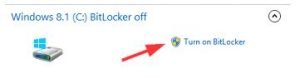 If it were this simple …
Enable BitLocker without TPM
This is the easy bit. BitLocker demands that your computer have TPM but most older (some newer!) computers don't have this. TPM is useful but I disagree that not having TPM should force someone to be 100% without BitLocker protection. To bypass this artificial limitation, I read this post which can be summarize as:- Start => run => `gpedit.msc`
- Local Computer Policy navigate to Computer Configuration \ Administrative Templates \ Windows Components \ Bit Locker Drive Encryption \ Operating System Drives and double click on Require additional authentication at startup.
- Enable the feature and check the box next to Allow BitLocker without a compatible TPM, click Apply and Ok, and close out of Local Group Policy Editor.
Switch Windows 8 from legacy/MBR boot to UEFI boot
Ok, this is a big one but is needed. Before proceeding, I HIGHLY recommend you have a full system backup - you can potentially lose every bit of information on your computer. You've been warned!Why is this needed? On most Macs when you turn on Bootcamp, you’ve already exhausted all 4 possible MBR partitions (1x EFI, 1x Mac OS, 1x Mac OS Recovery and 1x Bootcamp). Bitlocker tries to create a new EFI partition into which it wants to keep Windows’ EFI bootloader - and fails to create it since MBR can only support 4 primary partition.
Lastly, before proceeding read this:
Windows 8 + Macbook Pro (mid 2009) don't work well on the graphics side of things. The NVidia 9400M and 9600M GT crash the system, so I booted in safe mode and DISABLED both of them. Not just uninstalled them because Windows would simply reinstall them next time. You lose 3D graphics as well as adjustable screen brightness, but I'm ok with it since this machine would only see office apps and visual studio. No more crashes!Solution
- Remove Hybrid MBR (inspired by this StackOverflow answer)
- Boot into Mac OS
- Download and Install gdisk
- Launch gdisk on your disk by typing sudo gdisk /dev/disk1 in a Terminal window. (Change the device identifier if it's not as you presented earlier or if you use another OS for the job.)
- Type `p` to view the partition table to verify you're working on the correct disk. If not, type q to quit without saving your changes and try again with another device.
- Type `x` to enter the experts' menu.
- Type `n` to create a fresh protective MBR. Note that gdisk won't confirm a change; it'll just show you a new experts' prompt.
- Type `w` to save your changes. You'll be asked to confirm this action. Do so.
- Copy Windows' UEFI boot files onto existing EFI partition.
- Boot from the Windows 8.1 DVD/USB key (I had to use the DVD on this old MacBook Pro)
- Choose Repair => Troubleshoot => Advanced Options => Command Prompt
- Mount the EFI partition Mac OS already set up.
- Launch `diskpart`
- `list disk`
- `select disk 0` (assuming it's 0, see the output of prev command for your situation)
- `list vol`
- `select volume 3` (we have to select the EFI partition, it should be the FAT32 type)
- `assign letter=v:`
- `exit`
- Leave this command window open, it's needed for the next step
- Copy over the Windows boot loader files
If you look at the `v:\EFI\` folder you'll notice you have Apple's bootloader inside the `Apple` folder but none for Windows (they would live inside a `Microsoft` folder). We need to fix that, so ...
- Run `bcdboot c:\windows /s v: /f UEFI`
- Nvidia Graphics Fix or Misc repair
Try booting, it you successfully reach the login screen, skip this step.
Still here? Tough luck eh? In my case, the NVidia 9400M and 9600M GT were causing the system to crash because they are both seen and nvidia hasn't written drivers to account for this. This crashes the system. In Bootcamp (Apple's legacy boot path), this isn't an issue because the 9400M is disabled before booting Windows, so no Nvidia driver crashes. So ... the fix?
- Booted in safe mode (Windows 8.1 will auto trigger this after 3 failed boots)
- Open device manager (Win-R => devmgmt/msc)
- Right click 9600M GT => Disable (NOT uninstall as Windows will simply reinstall next time)
- Do the step just above for 9400M too.
- No more crashes!
- Enable BitLocker
- Log into Windows
- Open explorer, right click the "C" drive and hit "Enable Bitlocker"
- Done!